Article
Sorting and Filtering
Sort your data and build powerful filters with ease
Sorting Your Data
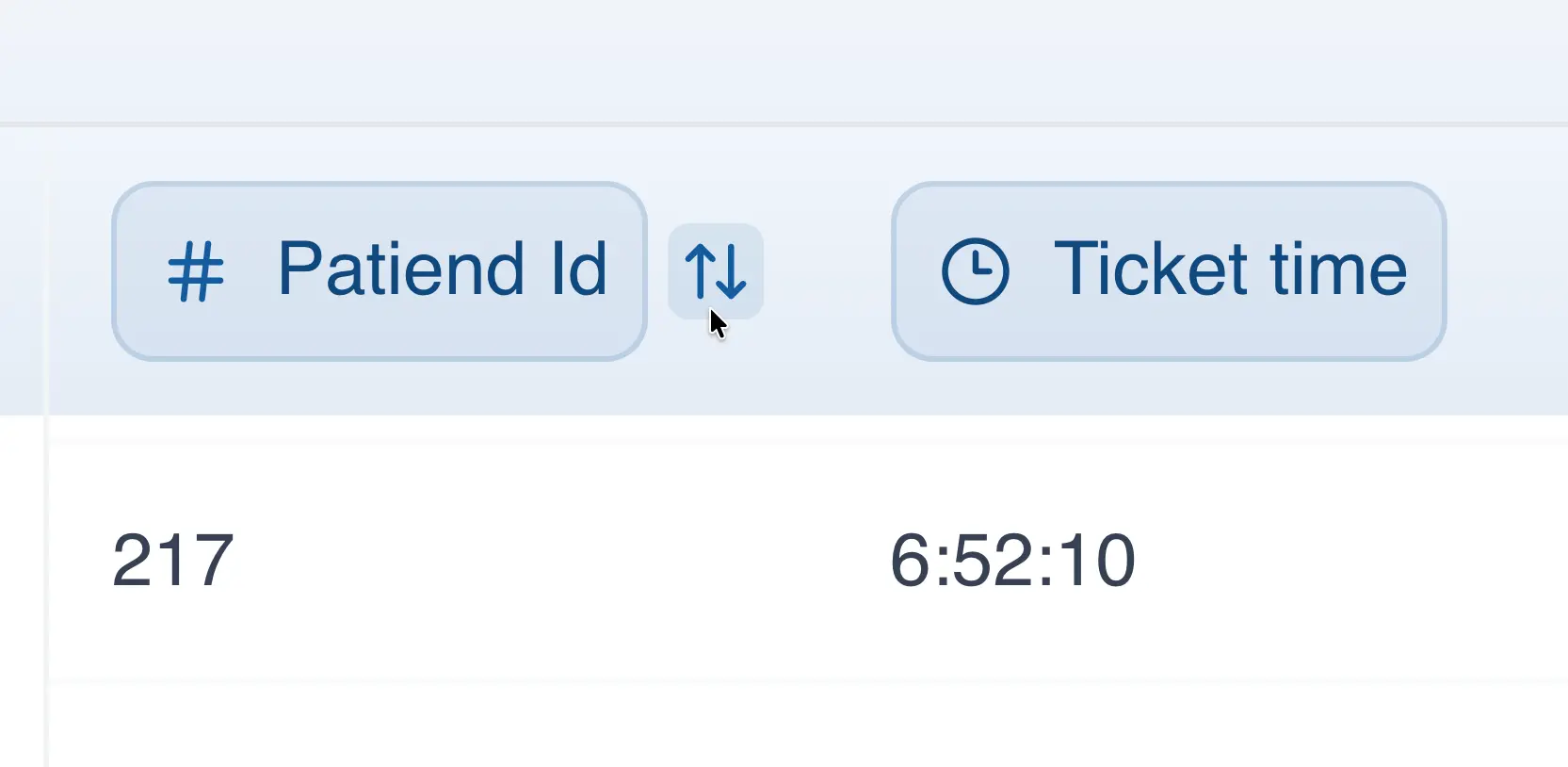
You can sort your data in ascending or descending order. To do so, simply hover over the column you want to sort to reveal the sort icon, then click it to sort your data.
Filtering Your Data
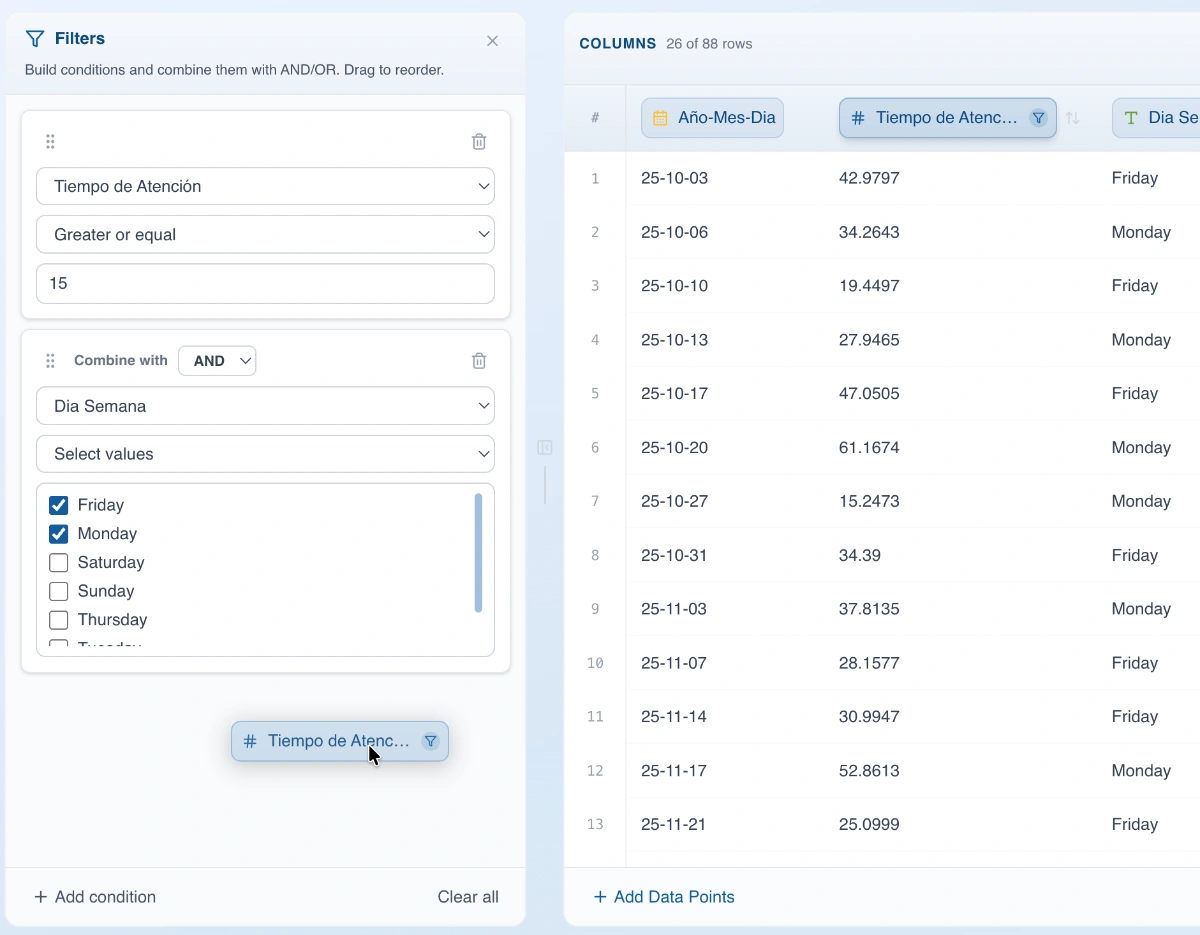
You can start building filters quickly by dragging a column to the filter panel on the left side of the application. You can also open the filter panel by clicking on it and then adding the columns you want to filter.
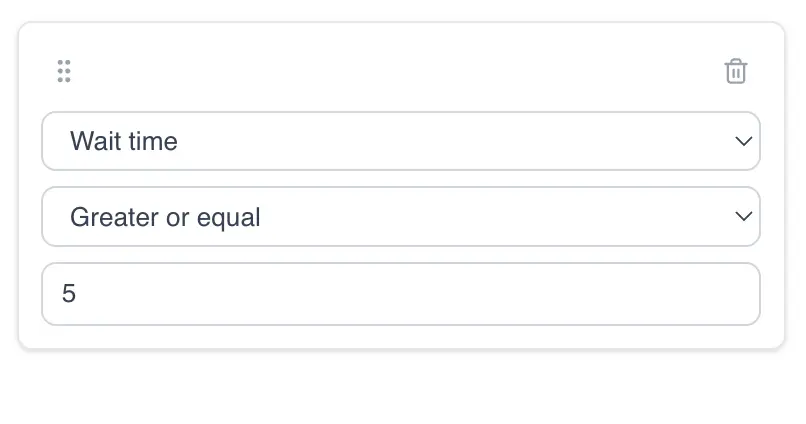
When filtering numeric data (decimal or integer), you can choose from the following conditions:
- Equal to: Filters only the data that matches the number you specify.
- Not equal to: Filters only the data that does NOT match the number you have specified.
- Greater than: Only shows data that is greater than the specified value.
- Greater than or equal to: Only shows values that are equal to or greater than the specified value.
- Less than: Only shows rows whose values are less than the specified value.
- Less than or equal to: Filters rows with values equal to or less than the specified value.
For categorical data, the available options are:
- Equal to: Filters rows that match the specified value.
- Not equal to: Filters rows that do NOT match the specified value.
- Include values: This condition displays a list of the different values in the column so you can select only the ones you want to filter by.
- Exclude values: This condition also displays a list of the different values in the column, but with the difference that the selected values will be hidden once the filter is applied.
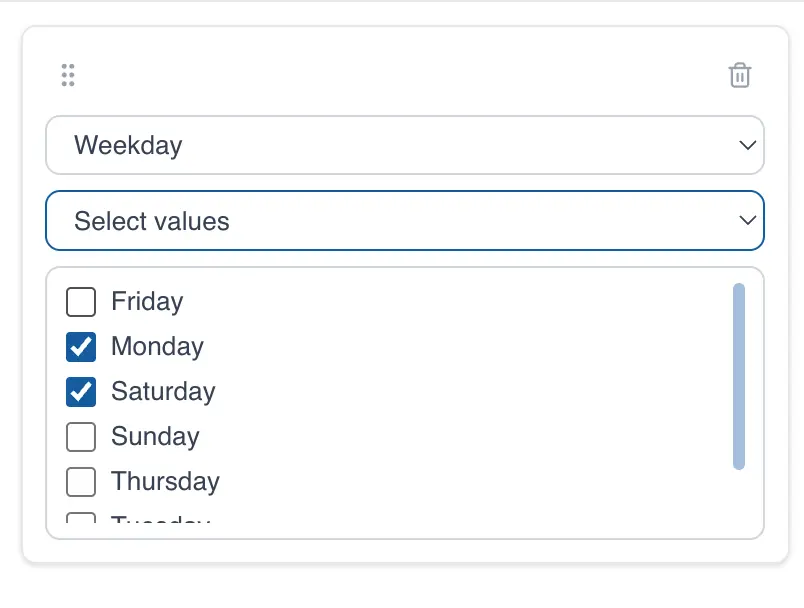
Finally, date and time data have all of the above filters but with some differences:
- Between: This condition filters values that fall between two dates, inclusive.
- Include values: Instead of showing a list of values to include, you can add dates or times by selecting them from the date picker.
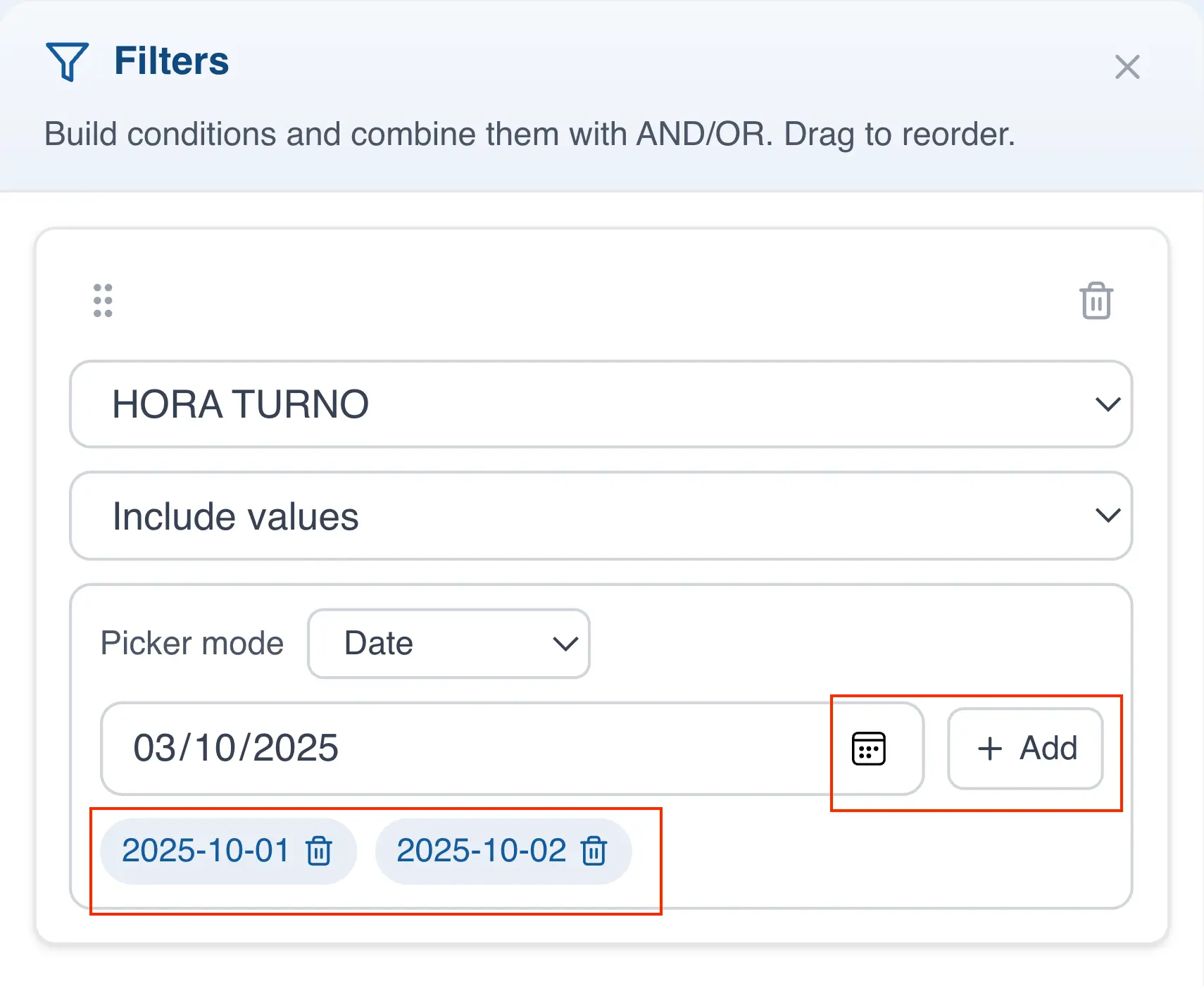
- Exclude values: Just like the previous filter, you choose dates from a picker but in this case to exclude them from the filter.
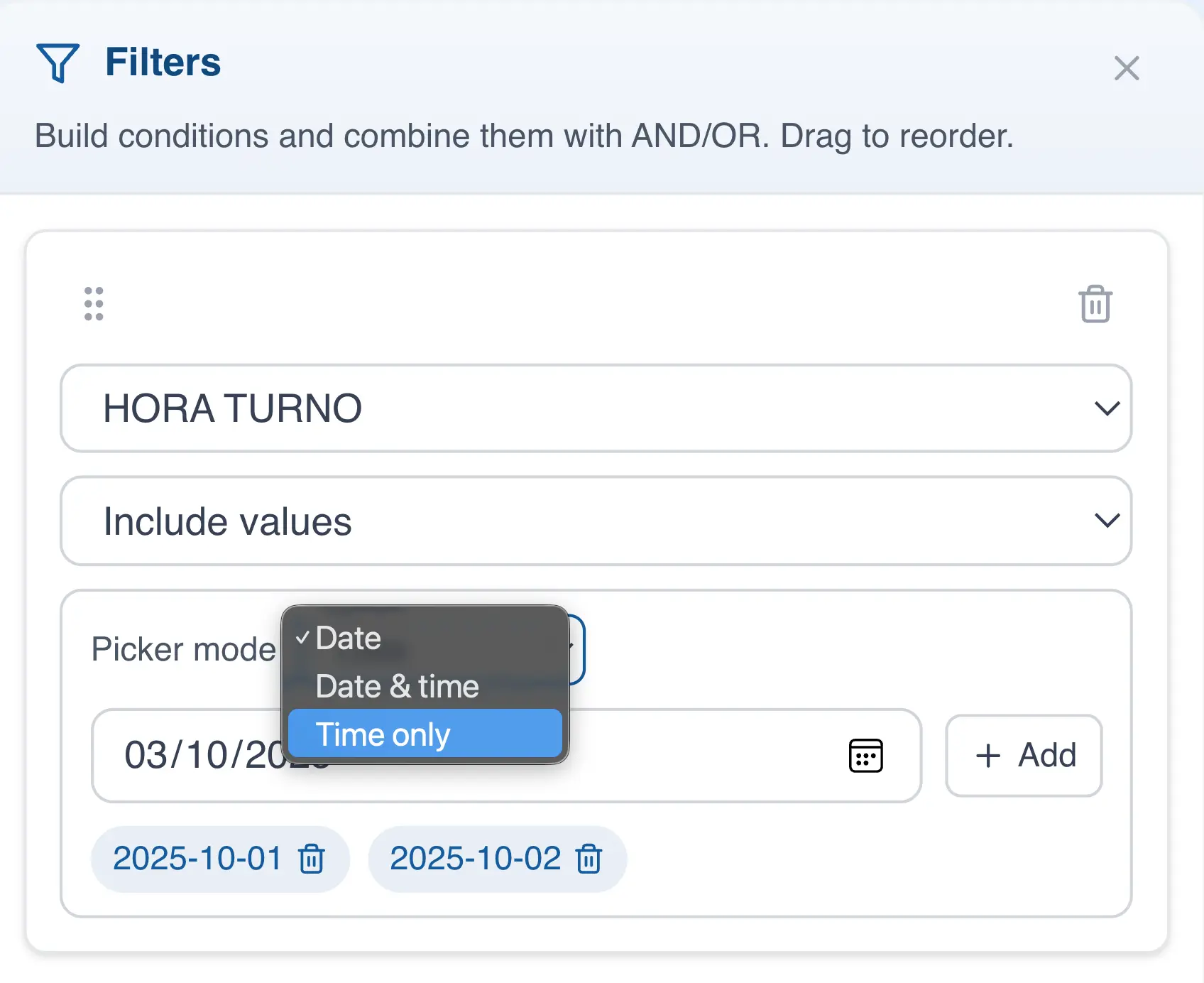
For date columns that also contain time, when using the "Include values" and "Exclude values" conditions you can switch the picker mode between date, date and time, or time only. This lets you create filters targeting a specific component of the date.
Combining Filters
You can combine columns to build more powerful filters. When adding multiple filters, you can decide whether they will be "AND" or "OR" type filters.
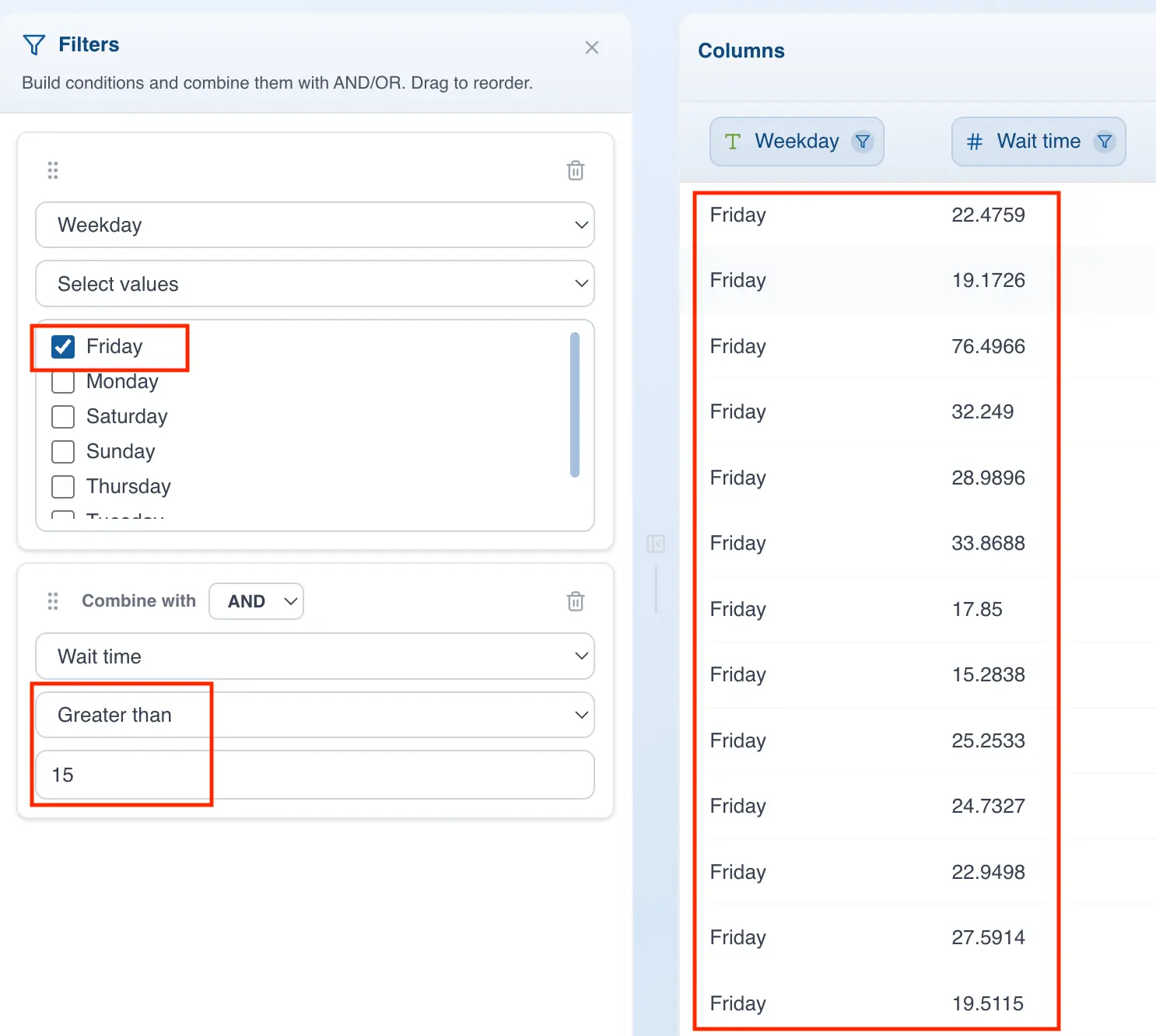
- AND filters: This type of filter shows rows where the columns meet all of the specified conditions. For example, in the image below the data is filtered using the following condition: the "Weekday" column must have the value "Friday" AND the "Wait time" column must be greater than 15.
If you look at the filter result, only rows where both the Weekday and Wait time columns satisfy both conditions are shown.
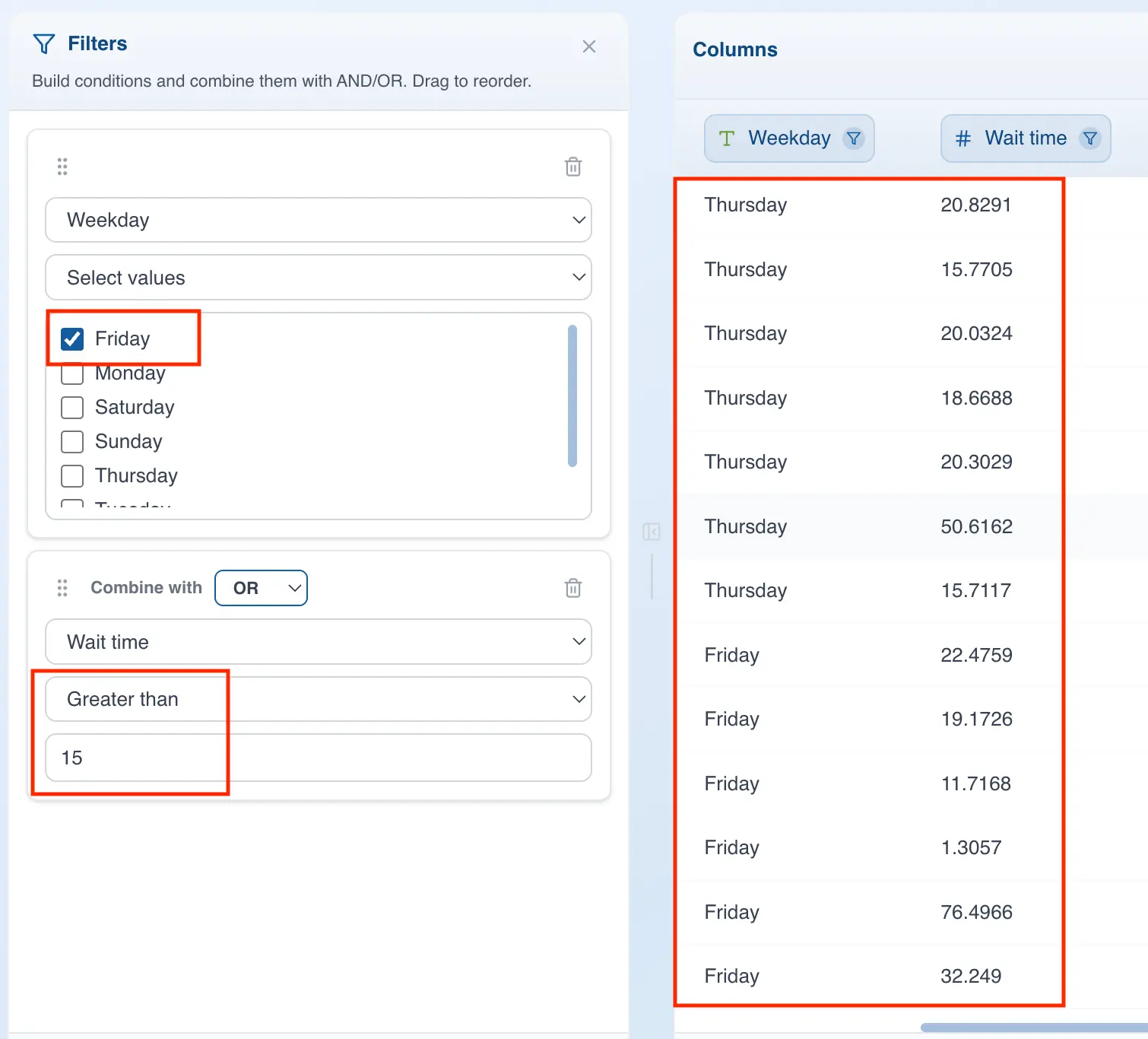
- OR filters: With this type of filter, the rows shown need to meet at least one of the conditions, but not necessarily both. For example, in the image below an OR filter is built using the same values as the previous example. In this case, the following combinations that satisfy the filter conditions are shown:
- Rows where the "Weekday" column is not "Friday" but the "Wait time" column is greater than 15
- Rows where "Wait time" is less than or equal to 15, but the "Weekday" column has the value "Friday"
- Rows where "Wait time" is greater than 15 and the "Weekday" column has the value "Friday"
Enabling / Disabling Filters
By default, when you create a new filter your analyses automatically update using only the data that satisfies the filter conditions. If you do not want your data to update when creating filters, simply click the refresh icon in the quick access bar.